How to Resize Images for Instagram, WhatsApp & LinkedIn (Free Tool)
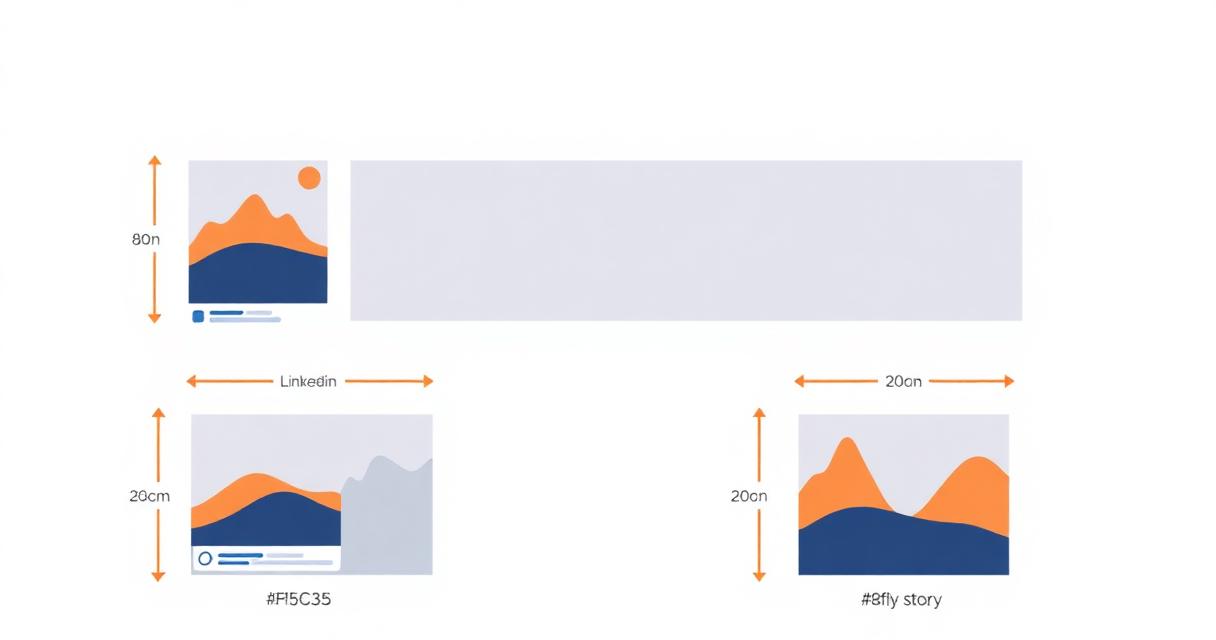
Uploading the wrong image size to social media is one of the most common mistakes creators make. Instagram crops your image unexpectedly. LinkedIn shows a blurry profile banner. WhatsApp compresses your photo beyond recognition.
This guide covers the exact image dimensions for every major platform and shows you how to resize any image for free — no software download needed.
Why Image Dimensions Matter
Every social media platform processes images differently. When you upload an image that doesn't match the platform's recommended dimensions, one of three things happens:
- The platform automatically crops the image, often cutting off important parts of your photo or design.
- The platform stretches or squishes the image to fit, making it look distorted or unprofessional.
- The platform compresses the image heavily to reduce file size, resulting in a blurry or pixelated final result.
Getting the dimensions right before uploading eliminates all three problems.
Instagram Image Sizes
- Square Post: 1080×1080 px (1:1 ratio)
- Portrait Post: 1080×1350 px (4:5 ratio)
- Landscape Post: 1080×566 px (1.91:1 ratio)
- Story / Reel: 1080×1920 px (9:16 ratio)
- Profile Picture: 320×320 px (displays as circle)
LinkedIn Image Sizes
- Profile Picture: 400×400 px minimum
- Banner / Cover Image: 1584×396 px
- Post Image: 1200×627 px
- Company Logo: 300×300 px
- Article Cover: 1920×1080 px
WhatsApp Image Sizes
- Profile Picture: 500×500 px
- Status Image: 1080×1920 px
- Shared Images: Any size works, but WhatsApp compresses images over 1 MB automatically
Twitter / X Image Sizes
- Profile Picture: 400×400 px
- Header / Banner: 1500×500 px
- Tweet Image: 1200×675 px (16:9 ratio)
- Card Image: 1200×628 px
YouTube Image Sizes
- Thumbnail: 1280×720 px (16:9 ratio, minimum)
- Channel Art: 2560×1440 px
- Profile Picture: 800×800 px
Facebook Image Sizes
- Profile Picture: 170×170 px
- Cover Photo: 820×312 px (desktop)
- Post Image: 1200×630 px
- Event Cover: 1920×1080 px
How to Resize Images Free Using FlikTools
FlikTools Image Resizer is a free, browser-based tool that resizes any image to exact dimensions. Here's how to use it:
- Step 1: Visit fliktools.net/tools/image-resizer
- Step 2: Upload your image. Drag it into the upload zone or click to browse. Supports JPG, PNG, WebP, and GIF.
- Step 3: After upload, your original dimensions display automatically. For example: "Original: 4032×3024 px · 3.8 MB · JPG"
- Step 4: Choose your target dimensions. You can either enter custom width and height values, or click a preset button for your platform (Instagram Square, LinkedIn Banner, YouTube Thumbnail, etc.)
- The aspect ratio lock (enabled by default) automatically adjusts the other dimension proportionally when you change one value, preventing distortion.
- Step 5: Choose your output format (JPG for photos, PNG for graphics with transparency, WebP for web optimization) and quality level.
- Step 6: Click "Resize Image" and download your perfectly-sized image.
Pro Tips for Each Platform
For Instagram
Use JPG format at 85–90% quality for photos. The 1080×1080 square format works for both feed and potential repurposing. For stories, keep important content in the center 75% of the frame since edges get cut off on some devices.
For LinkedIn
PNG format works better for graphics, logos, and text-heavy images. JPG is fine for photographs. The LinkedIn algorithm reportedly favors native image uploads over links, so always attach images directly rather than sharing links.
For WhatsApp
WhatsApp automatically compresses images you share. To avoid this, select the "Document" option when sharing instead of the standard photo share — this sends the image at full quality without compression.
For YouTube Thumbnails
Always use 1280×720 px for thumbnails. High-contrast images with faces and bold text typically perform better. Keep important elements away from the bottom-right corner where the video duration timestamp appears.
Frequently Asked Questions
Will resizing reduce my image quality?
Downsizing an image (making it smaller) typically preserves quality well. Upsizing (making it larger than the original) can reduce sharpness since there is no additional pixel data to work with. FlikTools shows a warning if you attempt to upsize an image significantly.
Can I resize images on my phone?
Yes. FlikTools Image Resizer works fully on mobile browsers — Android Chrome and iOS Safari both work without any app download.
What is the best format for social media?
JPG for photographs. PNG for graphics, screenshots, and anything with text. WebP for web use where file size matters. Most social platforms accept all three formats.
Can I resize multiple images at once?
FlikTools currently processes one image at a time. The process is fast — typically under 5 seconds per image — so batch resizing a set of 10 images takes about a minute.
Is there a file size limit?
FlikTools processes images up to 20 MB. Most phone photos and social media graphics fall well within this limit.
Ready to try it?
Image Resizer is free to use — no signup, no limits.
Try Image Resizer NowYou might also like
How to Compress PDF Without Losing Quality (Free & Online)
Large PDF files are frustrating. They bounce back from email inboxes, take forever to upload, and eat up storage space. The good news? You can compress any PDF in seconds — completely free, without installing any software.
Freelancing10 Free Online Tools Every Indian Freelancer Needs in 2025
India now has over 15 million freelancers — the second-largest freelance workforce in the world. Here are 10 genuinely useful free online tools that every Indian freelancer should have bookmarked.